
General Information
Now that you have signed up for your Dallas City Of Learning account, start building your new profile! Pick your interests, view your progress check out recommended CCOL activities, and edit your profile all in one location.
For New Users
1. After you finish signing up, you will see the pop-up below. Click the orange "Let's Start With..." button to start building your profile:

2. Next, choose a few things that you like or are interested in, and click the orange "Update" button:
*You can also change these later on your Profile Page!

3. Choose a few jobs or careers that you might be interested in and click the orange "Update" button:
*You can also change these later on your Profile Page!

4. Now choose an avatar. First, click the gray avatar, and select an avatar of your choice. Then click the orange "Update My Avatar" button:


5. Now that you have built your profile, check out the recommended activities in the "Top Picks" section.
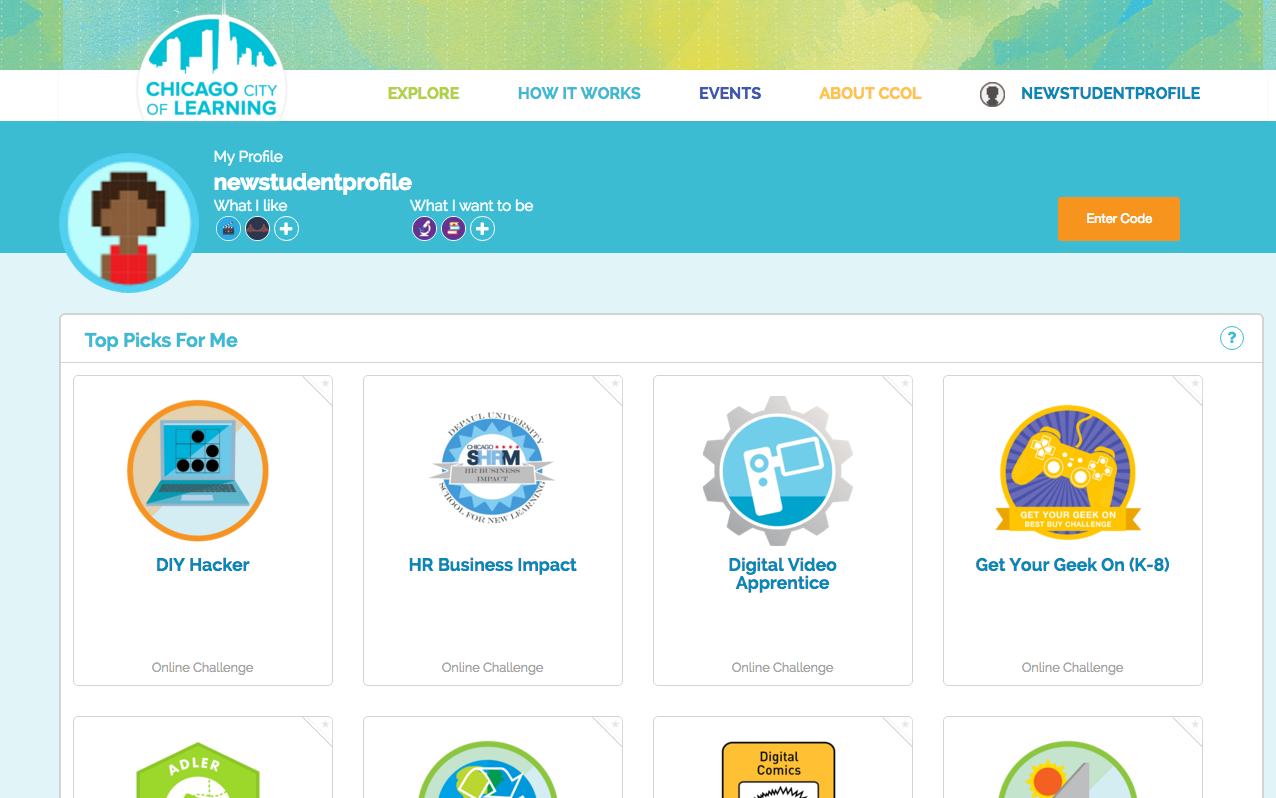
6. Explore the rest of your new profile by changing your avatar, entering any claim codes you may have or editing your information.
For Existing Users
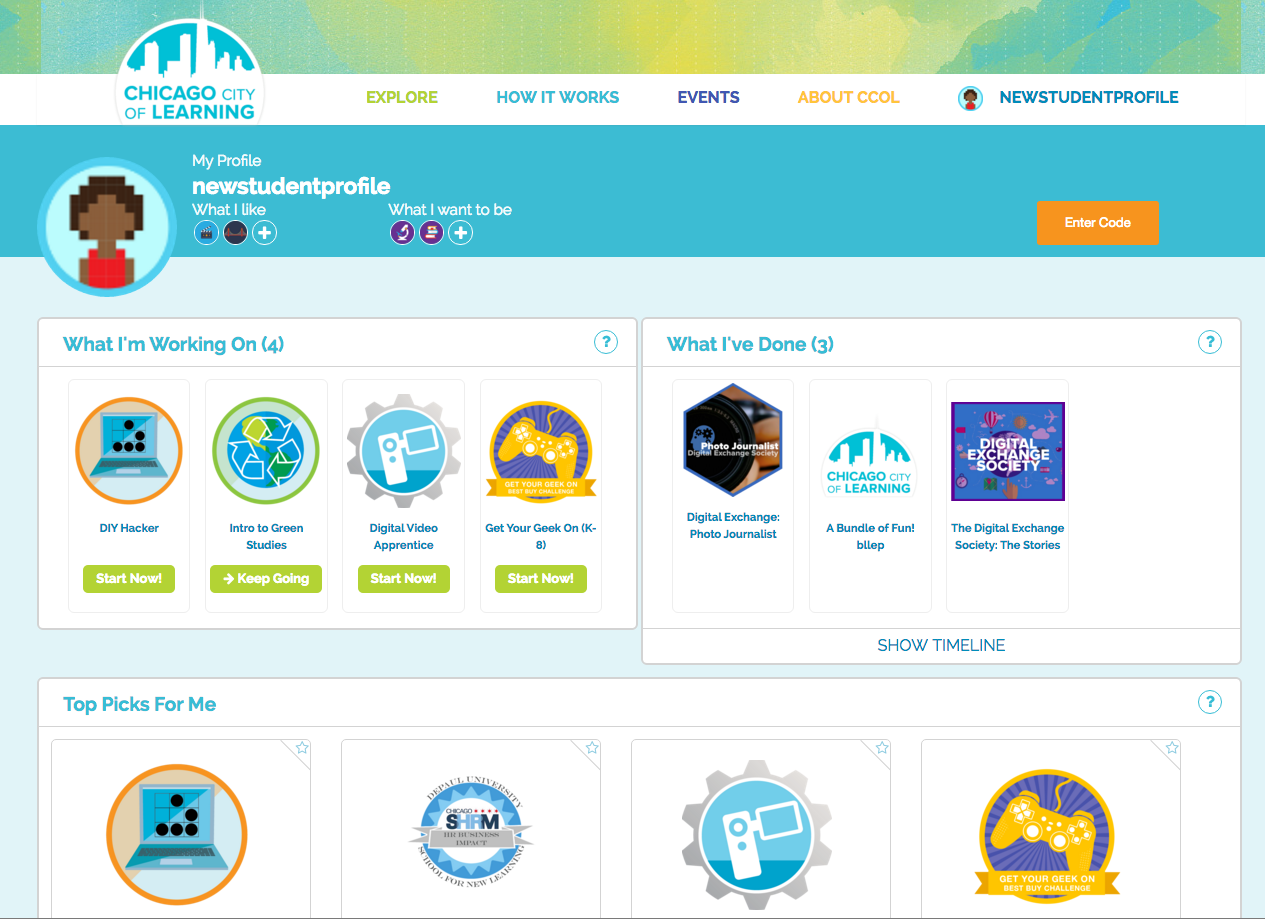
- If you already have a Dallas City Of Learning account, when you log in, you will be asked to build your profile. Follow the instructions above for New Users to build your profile. When you finish, if you have worked on any Dallas City Of Learning activities or earned any badges in the past, they will appear in the new "What I'm Working On" and "What I've Done" sections:
Changing Your Interests
- You can change your "What Do You Like" and "What Do You Want To Be" answers at any time by clicking the "+" buttons next to the small images at the top left of the page:
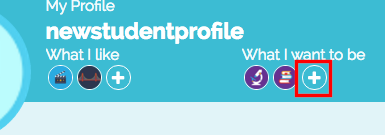
- The next time you log in to your profile, you should see a new set of Top Picks based on your interests.
Changing Your Avatar
- You can change your avatar at any time by simply clicking on your avatar and selecting a new one on the pop up:
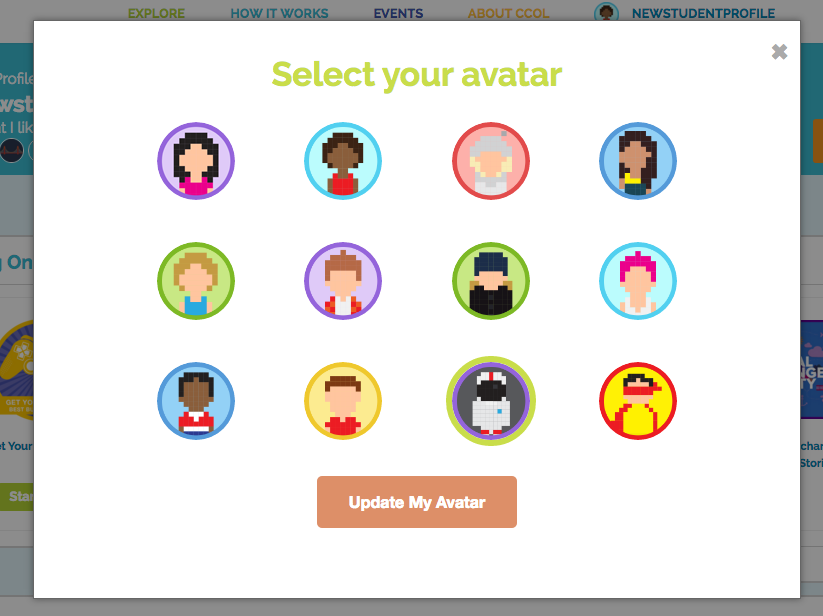
- Select a new avatar and click the orange "Update My Avatar" button to finish the change.
Changing Your Account Info
- If you need to make any changes to your account info like date of birth, password, username, mouse over your username in the top right of the screen to access the profile menu:
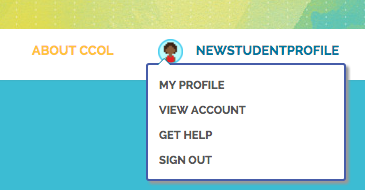
- Click "View Account" to go to the My Info page:
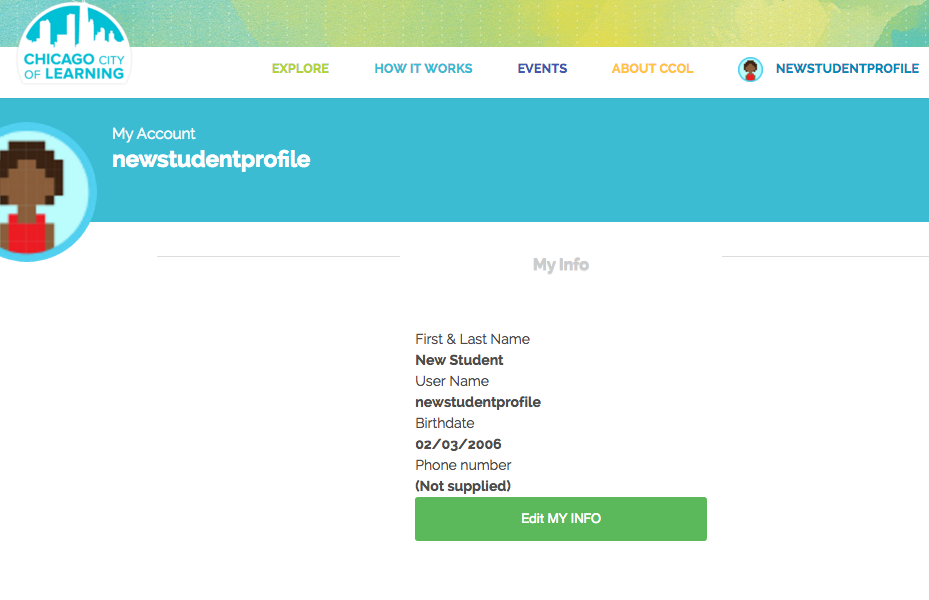
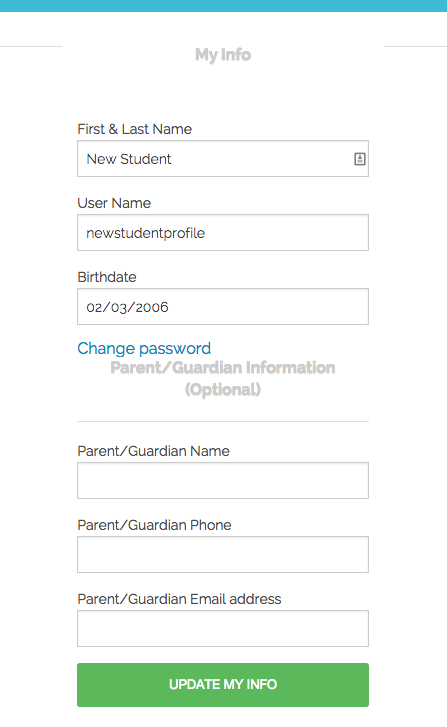
- Click the green "Edit My Info" button to edit any of the information that you see or to change your password. When you are finished, click the green "Update My Info" button to save your changes:
Comments
0 comments
Please sign in to leave a comment.